Pin Generator is a Pinterest tool built for people who want to create and schedule a lot of pins fast. Its core idea is simple: you build templates that contain placeholders for items such as titles and images, then the tool fills those placeholders using data pulled from a web page.
On paper, the workflow sounds clean and predictable. In real use, it can feel messy.
The upside is speed. Once you find a set of templates and settings that behave, it becomes possible to schedule thousands of pins in a single work session rather than designing them one by one. The downside is that the platform can be glitchy, especially when you try to build fully custom templates from scratch.
Pin Generator fits publishers who care more about volume and consistency of posting than perfect design control. If your goal is to stay active on Pinterest, keep boards populated, and schedule far ahead, the tool can meet that need.
It is also a match for people who do not enjoy manual Canva-style pin creation.
This tool is a weaker fit for creators who require strict brand precision, pixel-level control, and repeatable behavior from custom designs. If you expect every element to load flawlessly every time, you may spend more time fixing pins than saving time.
Some users will still be happy with “good enough.” Others will not.
3. Why Pin Creation Feels Like a Time Sink on Pinterest
Pinterest pinning often has a rough return-on-time equation. Designing a pin, writing a description, choosing boards, spacing the schedule, and keeping up with a posting cadence can take hours. And for many niches, traffic may stay modest even with steady effort.
That gap between effort and outcome is what makes bulk tools appealing.
Another issue is repetition. Pinterest wants fresh content, but creating truly fresh designs manually is slow. Even if you are comfortable with design software, the process becomes a grind when you are creating pins across many posts, boards, or sites.
4. Manual design vs outsourcing vs automation tools
Manual design gives maximum control. You can match brand guidelines, adjust typography carefully, and avoid template sameness. The cost is time.
Outsourcing to a VA can remove the workload, but it introduces management overhead and recurring spend. If results remain flat, it can feel like you paid to maintain the same outcome.
Automation tools sit in the middle. They reduce creation time and can streamline scheduling, but they come with constraints. With Pin Generator, the main constraint is reliability: templates and placeholder behavior do not always perform the way you expect.
5. How Pin Generator Works
Pin Generator combines three main functions: templated pin creation, bulk generation from a page URL, and bulk scheduling. The workflow is based on setting up a system once, then repeating it quickly across many posts.
When it works, it feels like batching. You stop thinking about individual pins and start thinking in sets: a group of templates tied to certain boards, scheduled across defined time windows.
6. Template-based designs with placeholders
Templates are built around editable layouts that can include placeholders such as a title field and an image area. After you submit a URL, Pin Generator tries to pull data from the page and inject it into your template.
In practice, template behavior depends heavily on how the template is built. Premade templates tend to behave more reliably, especially if you keep the built-in placeholder blocks intact and only make light style edits around them.
Fully custom templates can be unpredictable. Placeholder blocks may fail to populate, colors may reset, and designs can look unfinished without manual repairs.
7. Bulk generation from a URL
Bulk generation starts by pasting a URL into the generator. The tool then surfaces images from the page so you can choose what to use. After selection, it generates multiple pins using your chosen templates.
This URL-based method reduces repetitive work: you do not need to upload assets one by one or rewrite the same metadata repeatedly. It also allows quick variation by selecting multiple images, which can rotate across generated pins.
A small detail can be surprisingly useful: the destination URL is displayed in a way that makes it easier to reference tricky spellings without rereading the post.
8. Bulk scheduling across boards and time slots
Scheduling is where the speed gains can become dramatic. Pins can be assigned to multiple boards at once and placed into time slots based on your scheduling settings. That is also where credit usage can spike, because each board placement consumes credits.
Large batches end up in the Schedule view, where you can shuffle order and adjust cadence. This step matters because repeated patterns may look spammy, and it can also create a poor user experience if similar pins appear back-to-back.
Small tweak. Big difference.
9. The Biggest Drawback Glitches and Template Limitations
The tool’s most consistent criticism is simple: it can be glitchy. People can tolerate quirks if the output is fast, but the wrong kind of glitch turns a bulk workflow into a repair project.
The key is understanding where problems tend to appear and building a process that avoids the worst failure points.
10. What breaks in fully custom templates
Custom templates are where placeholder automation can fall apart. Common failures include image areas staying blank after a URL import, title placeholders updating inconsistently, and visual styling such as color choices snapping back to defaults.
Those problems compound in bulk creation. A single flawed template can produce dozens of pins that require manual editing, which defeats the purpose of automation.
The frustrating part is that these failures can feel random.
11. What usually works premade templates with light edits
Premade templates are generally more stable because their placeholder blocks appear to be structured in a way the system expects. If you start with a premade template and adjust surrounding elements such as colors, layout accents, and text styling, you can often keep the automation intact.
This approach trades uniqueness for reliability.
Still, it is possible to create a recognizable style by building a small library of category-based templates and keeping consistent brand choices within those constraints.
12. How to minimize rework and avoid half-finished pins
The fastest workflow is the one that avoids manual fixes after generation. To get there, test templates before creating large batches. If a template resets colors or fails to fill placeholders, delete it or rebuild it rather than trying to patch every pin.
Also watch for changes triggered by moving between tabs. Some settings refresh when you leave a page, so verify key options before clicking generate again.
If you must edit, do it in the smallest possible batch.
13. Pricing and the Credit System Explained
Pin Generator uses a credit model tied to activity. Each plan includes a monthly credit allotment, and credits are consumed when you schedule pins and when you use certain add-ons such as AI features.
This structure affects how the tool feels. A low plan may be fine for light posting, but bulk scheduling can drain credits quickly.
14. How credits are consumed when scheduling to multiple boards
Credits burn based on placements. If you create five pins and schedule each to six boards, that is 30 scheduled placements, and it can consume 30 credits in short order.
This encourages careful board selection. It also pushes users to think in campaigns: schedule a batch, then stop, rather than mindlessly sending everything to every board.
15. Why the base tier can run out fast for bulk pinning
A base plan with a small monthly credit limit can be used up in a single session if you are scheduling at scale. If your goal is to front-load a year of Pinterest activity in a few days, the base tier may feel restrictive.
For some users, the surprise is not the monthly price. It is how fast the credits disappear.
16. When Pro or Agency tiers start to make sense
Higher tiers make sense when you want volume: many pins per post, many boards per pin, and a long queue. They also make sense if you manage multiple Pinterest profiles, because scaling activity across accounts multiplies credit usage.
The decision is less about features and more about capacity.
If your strategy is bulk scheduling and then ignoring Pinterest for months, higher credit tiers align better with that approach.
Discount marketplaces can change the value equation. A discounted annual license with more monthly credits can cost less than a direct plan while providing more capacity. Some deals also allow stacking codes, increasing monthly credits and, in some cases, enabling lifetime access.
For people who tolerate the software’s quirks, lifetime access can feel rational: a one-time cost comparable to a short stretch of subscription fees or VA costs, with enough credits to schedule a large backlog.
Deal terms change. Always read what you are buying.
18. Support and Reliability
Support quality matters more when a tool is buggy. Strong support cannot prevent every issue, but it can keep problems from lasting long enough to derail your workflow.
One reported example: scheduled pins failed to publish, a ticket was submitted, and a response arrived within minutes. The issue was identified, patched, and deployed in roughly half an hour.
That kind of turnaround changes how risk feels.
19. A real example of fast issue resolution
Fast response time is only part of it. The notable part is that the fix was implemented, not just acknowledged. For bulk schedulers, that difference is critical because failures can impact hundreds of scheduled items.
Quick fixes can restore trust, even if the interface still has rough edges.
20. What strong support does and does not fix
Support can address outages, publishing failures, and clear bugs. It cannot fully remove the day-to-day annoyance of templates that revert colors or placeholders that sometimes fail in custom layouts.
In other words, support can keep the engine running, but it may not smooth every bump in the ride.
21. A Practical Workflow for Bulk Pinning
A workable Pin Generator process is built around reducing variance. The goal is to create predictable outputs with minimal manual touch-ups, then repeat the same sequence across many URLs.
22. Set scheduling settings first
Start in the Schedule area and define posting frequency, time windows, and recommended slots. If you handle multiple profiles, confirm the active profile before building a batch.
Many users start slow, such as 5–10 pins per day, then increase as the queue fills. This reduces the risk of aggressive posting early on.
23. Build category-specific templates for consistent branding
Create template groups by content category: for example, separate looks for restaurant posts, travel posts, or product reviews. Category sets make board selection easier and keep your visual identity consistent.
If custom templates glitch, start from a premade template pack and modify around the existing placeholder blocks.
24. Test templates before scaling
Before generating hundreds of pins, generate a small test batch. Turn off randomization and create one pin per template so you can spot failures quickly.
If colors reset or placeholder content fails, rebuild or replace the template. Fixing templates is faster than fixing pins.
25. Generate pins from a URL and choose images
Paste the URL, choose how many pins to generate, and run the generator. When the image picker appears, select one or multiple images from the page.
Multiple images can add variation, but check the outputs. Some images may crop poorly or clash with text overlays.
26. Use Bulk Settings for titles descriptions and links
Bulk Settings is where you standardize metadata. Update the title, pin description, and destination link for the batch. If your templates use a title placeholder, changes appear immediately in the previews, making it easier to catch awkward line breaks or truncated wording.
Keep an eye on add-ons that consume credits, especially AI writing tools.
27. Schedule all pins and repeat efficiently
Once the batch looks acceptable, schedule all pins. Then repeat the same steps for the next URL while keeping the same template set and board selection, which speeds up production.
This is where the tool can deliver dramatic time savings.
The faster you move, the more template reliability matters.
28. Shuffle and audit the queue to avoid repetitive patterns
After scheduling, use shuffle options to randomize the queue. Some users prefer random shuffle if smart spacing is inconsistent with very large queues.
Then audit the schedule by sorting ascending and descending and scanning for repetitive sequences. Adjusting order is a practical step for both appearance and caution around spam-like patterns.
29. Advanced Options and Tradeoffs
Pin Generator includes extras that can speed up work or add variety, but each introduces its own tradeoffs in control, credits, or complexity.
30. Excel bulk upload and when it helps
A spreadsheet upload option allows you to prepare pin details offline and upload in bulk. This can be helpful if you already manage content in spreadsheets or if you want to prepare large campaigns systematically.
However, if templates are unstable, bulk upload can magnify problems by producing a large volume of flawed pins at once. Some users find the spreadsheet preparation time offsets the speed benefit.
31. AI features what they do and how they burn credits
AI tools can generate titles or descriptions. They can save writing time, but they also consume credits per use, which can drain monthly allotments quickly in high-volume workflows.
AI output may also require review for tone, accuracy, and compliance with your brand guidelines.
32. Stock images video and other add-ons
Stock images and video options can add variety, especially if posts have limited original photography. The tradeoff is uniqueness and relevance. Pinterest users often respond better to images that clearly match the content they are about to click.
Add-ons can help, but they are not a substitute for a good content-to-visual match.
33. Performance Expectations What Pin Generator Can and Cannot Improve
Pin Generator can dramatically reduce production time. It cannot guarantee traffic increases.
That distinction prevents disappointment.
34. Time savings vs traffic outcomes
The tool’s biggest win is operational: reducing pin creation and scheduling time by an order of magnitude once a stable workflow is in place. For some users, that alone makes Pinterest feel manageable again.
Traffic is a separate issue influenced by niche, content quality, competition, seasonality, account history, and Pinterest’s own distribution choices.
35. Why results may stay flat across methods
Some publishers report similar Pinterest performance regardless of whether they design pins manually, outsource, or use scheduling tools. In those cases, the bottleneck is not production volume. It may be niche fit, platform changes, or the strength of older pins that continue to outperform new ones.
Tools can speed up activity without changing outcomes.
36. Niche fit and the reality of Pinterest today
Pinterest tends to reward certain categories more consistently than others. Many people point to food as a category with strong historical performance, though even that space has become more competitive.
If your niche does not align well with Pinterest user behavior, the most realistic goal may be maintaining a presence with minimal effort rather than expecting major growth.
37. Final Verdict Is Pin Generator Worth It
Pin Generator is best described as fast, functional, and imperfect. It can feel frustrating early on, then become useful once you accept its boundaries and build a workflow around what works reliably.
38. If you can tolerate quirks for speed
If you can work within premade templates, test before scaling, and accept occasional odd behavior, the time savings can be enormous. Scheduling thousands of pins in a single day becomes realistic.
For many users, that is the whole point.
39. If you need perfect custom design consistency
If your Pinterest strategy depends on fully custom templates behaving flawlessly, you may struggle. Glitches that cause missing images, inconsistent placeholder fills, or styling resets can undermine the value of automation.
In that scenario, manual design or a designer-led process may be the safer route.
40. When the tool is worth it only at a discount
Because credits can run out quickly for bulk pinning, pricing matters. Discounted plans or lifetime deals with higher monthly credit allocations can make the tool feel far more reasonable, especially if your goal is to schedule far ahead.
Without a strong credit allotment, bulk scheduling can become an exercise in hitting limits.
The bottom line is simple: Pin Generator can save huge amounts of time, but it asks you to accept imperfections. If that trade suits your workflow, it can be a practical way to keep Pinterest active without turning pin creation into a weekly drain.
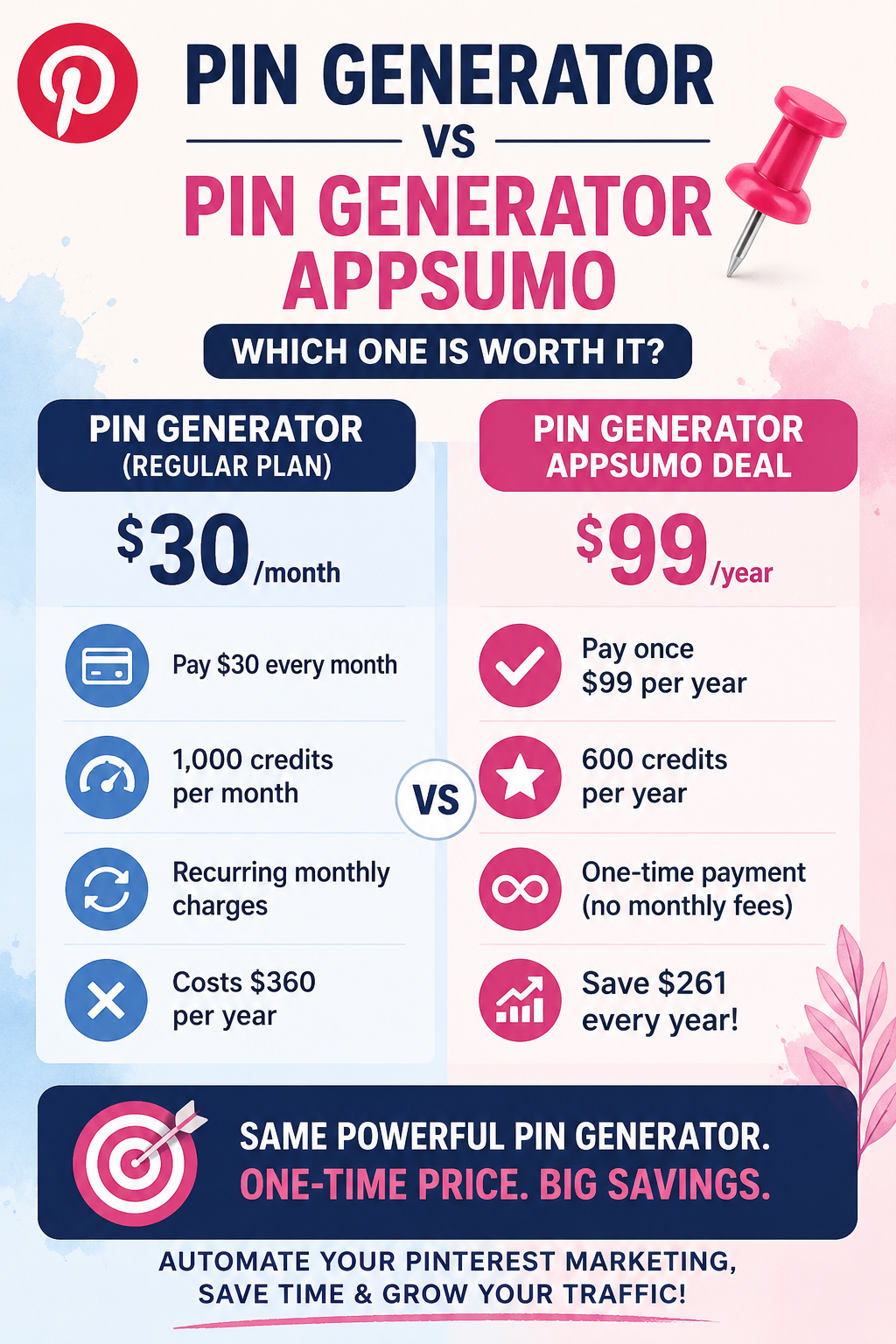
Pin Generator AppSumo vs Regular Plan: Which Offers the Best Value?
If you’re serious about Pinterest marketing, Pinterest SEO, and driving consistent traffic to your blog or online business, Pin Generator is one of the best tools available. The AppSumo Pin Generator deal offers incredible value at just $99/year with 600 AI credits, compared to the regular Pin Generator subscription at $30/month with 1,000 credits. For most bloggers, affiliate marketers, Etsy sellers, and content creators, the AppSumo plan provides more than enough credits while saving hundreds of dollars each year. Whether you want to create Pinterest pins automatically, schedule content, generate AI-powered pin titles and descriptions, or grow your Pinterest account faster, Pin Generator helps you automate Pinterest marketing, increase organic traffic, and save hours every week.